Carousels4 min read
Make a carousel of your drop
Up to 20 slides people swipe through on Instagram or Facebook, drawn from your drop: your menu, then your products, then how to reserve.
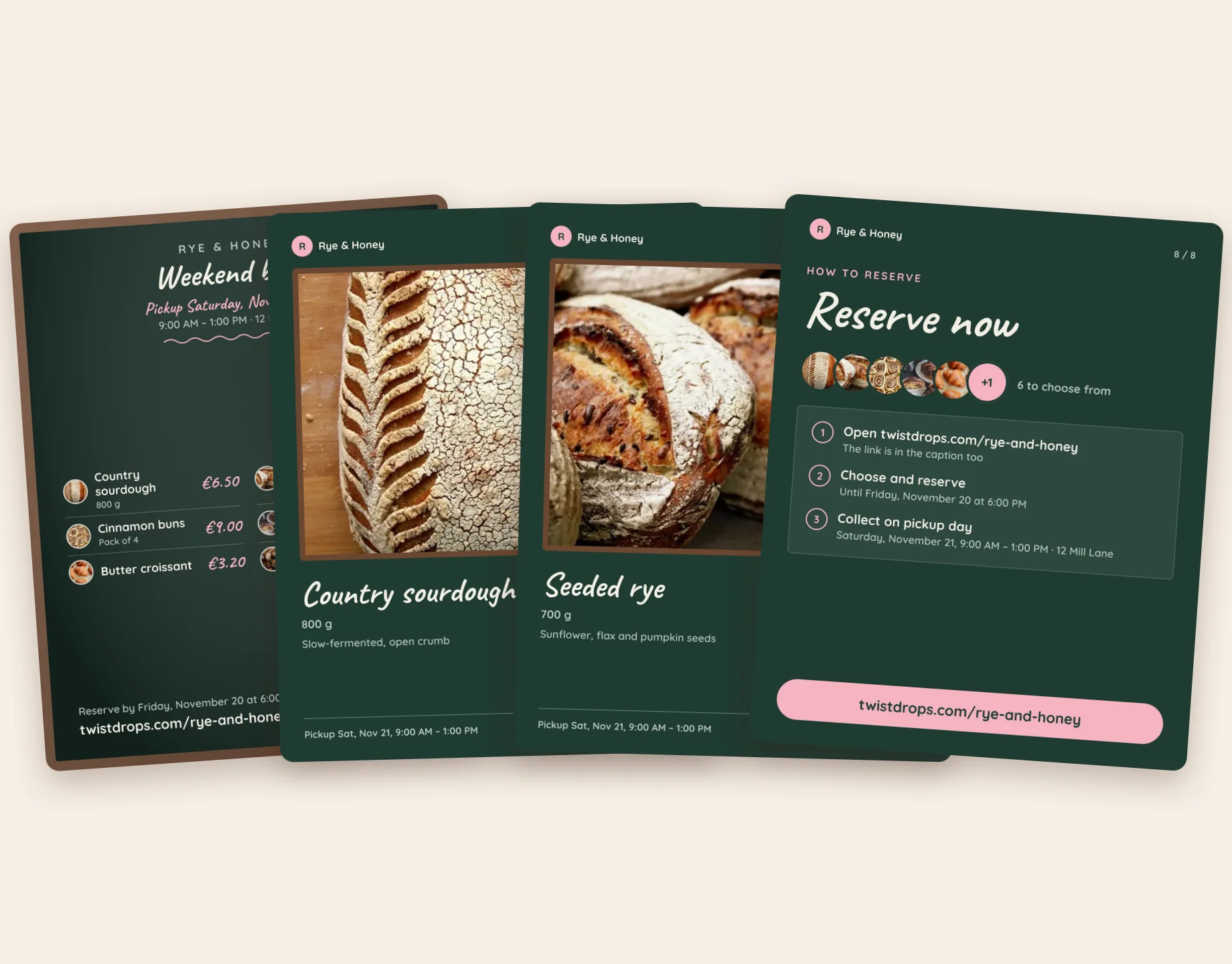
Slides people swipe through
A carousel is one post of several pictures, which people swipe through on Instagram and Facebook. The studio draws up to 20 slides from your drop, as many as Instagram takes, each in a post’s 4:5 shape. Your products, prices, pickup and link are on them. A product needs a photo to have a slide of its own, so add photos to your products first. Without any, the carousel is your menu and how to reserve.
Find it in the studio
Open “Marketing”, in “Menu” on a phone or in the sidebar, under “Promote your shop”. On “Carousel”, tap “Make a carousel” and choose a drop that’s open now or scheduled. Or start from a menu: after you download or share it, the studio asks “Make a carousel too?”, and “Make the carousel” starts one with the menu’s template, colours, language, headline and products. The editor has five steps: “Type”, “Template”, “Slides”, “Content” and “Share”.
A slide for each product
In “Type”, “Each bake” starts with your menu, gives each product with a photo a slide of its own, and ends with how to reserve. Here are four slides of one drop: the menu, two of its products and how to reserve.
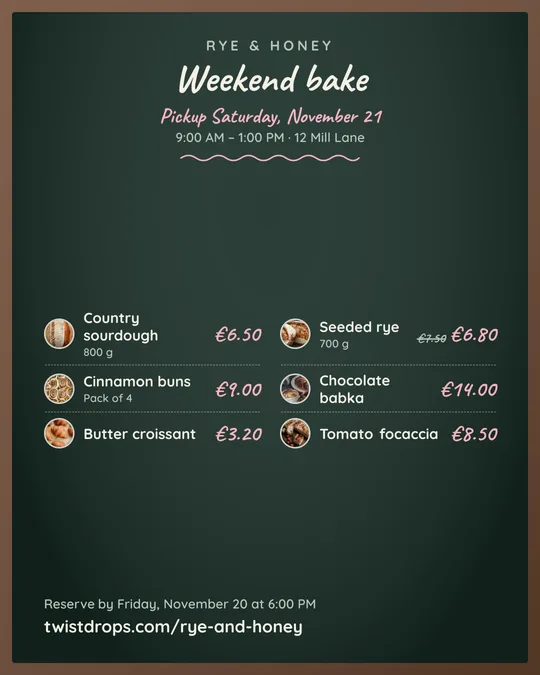
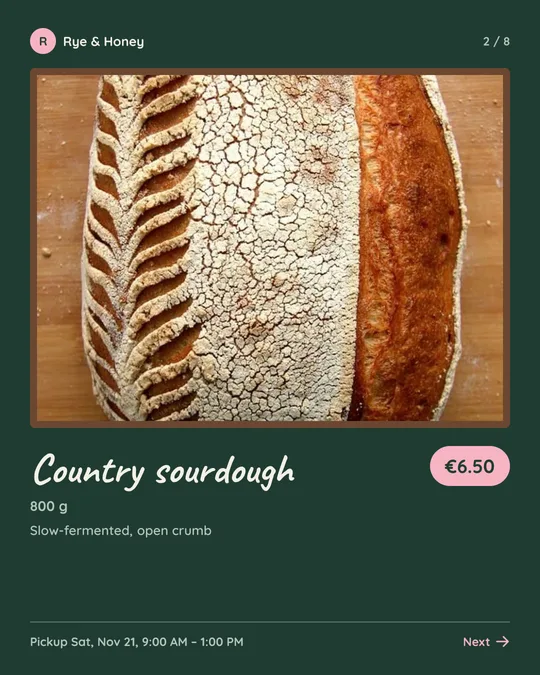
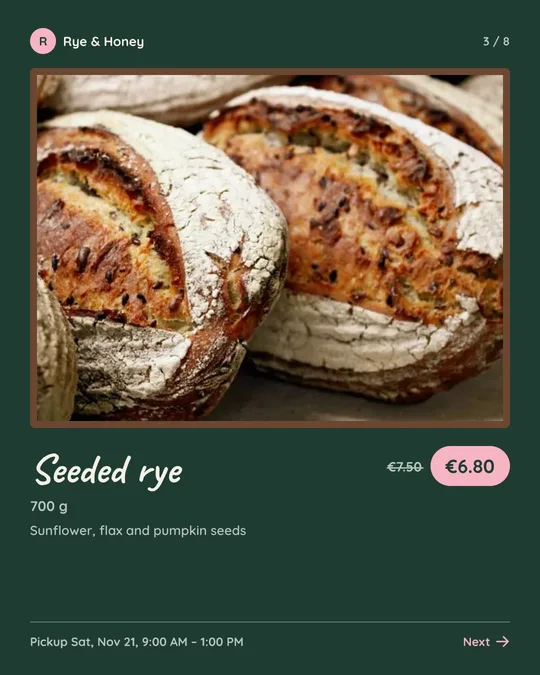
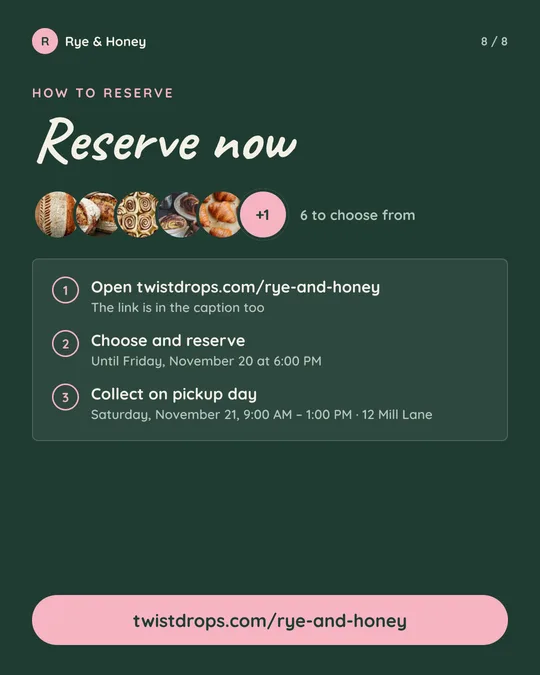
A product’s slide shows its photo, name, price, size or packs and what you wrote about it, with the pickup at its foot. The last slide gives three steps, from opening your link to collecting on pickup day, and ends on your link, large. Up to 18 products get a slide, and the caption lists them all. This kind suits Instagram and Facebook alike.
One long picture, for Instagram
“One picture” draws one long picture and cuts it into slides, so your products run on from slide to slide as people swipe, their photos crossing the cuts. Here are three of its slides side by side.
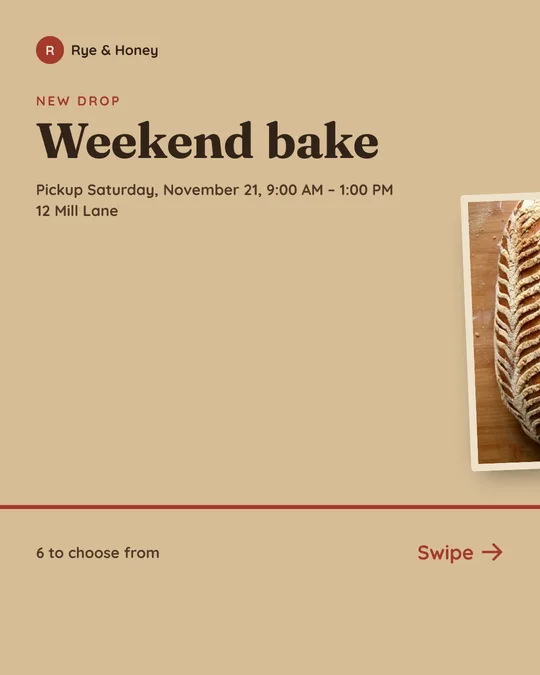
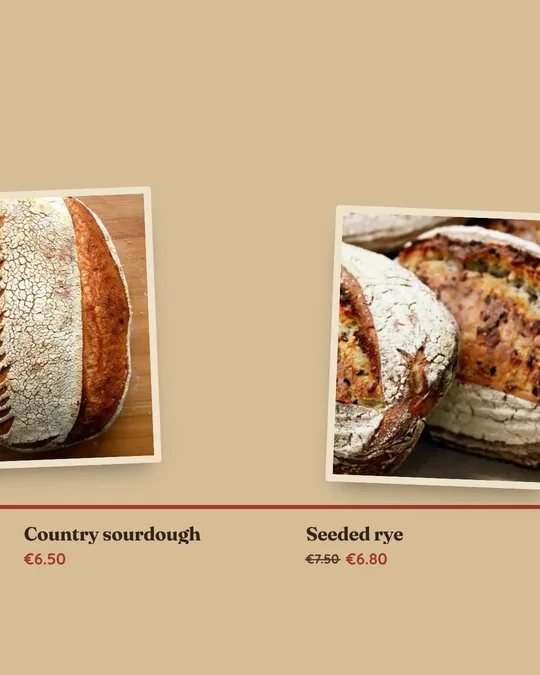
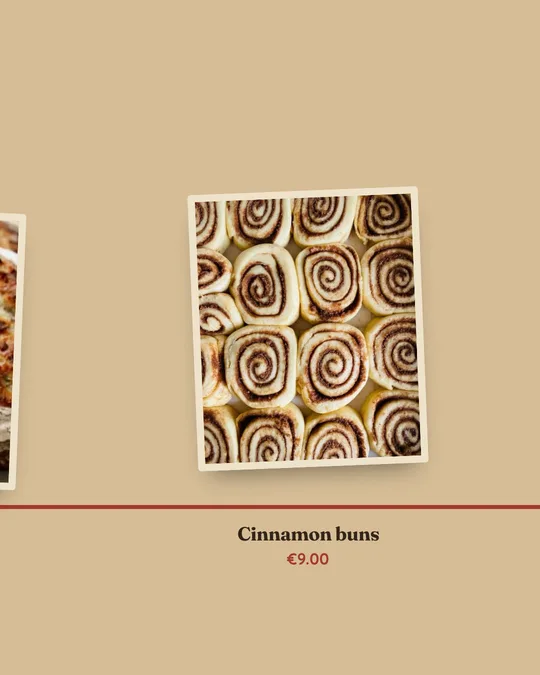
Its first slide names your drop, the pickup and how many products there are to choose from, and its last is how to reserve. It holds your first 18 products with a photo, and the caption lists them all. Post it on Instagram only: Facebook shows a carousel’s slides as a grid, which breaks the picture into pieces.
Slides you set up
“Custom” keeps your menu first and how to reserve last, with slides you set up between them. Tap “Add a slide”, and the new slide opens: choose one to four photos under “Photos on this slide”, the products under “Bakes, in this order”, and, for a product with several photos, “Which photo”. “Show under each photo” picks what’s written under them: the name, the price, the size or packs, and on a slide of one photo, what you wrote about the product. A product is on one slide at most, and “Start again” goes back to your drop’s order.
Template, colours and letters
“Template” works as it does for a menu: five templates all year, “Christmas” and “New Year” from 15 November to 6 January, three colour sets each under “Colours”, and “Sans” or “Serif” under “Letters”. Your menu, the first slide, is drawn in the template, and every other slide takes its colours and its type. With your brand set in “Your brand”, “Your colours” and “Your font” come first and a new carousel starts in them, with your logo on its slides at the size you chose there.
Slides and content
“Slides” lists your products in your drop’s order. With “Each bake” or “One picture”, untick any you’d rather leave off; one always stays, and a product without a photo is marked “No photo” and stays off. With “Custom”, it’s where you set up your slides. In “Content”, “Language” and “Headline” work as they do for a menu, and “Prices” and “Packs on one line” switch on or off for every slide. With “Custom”, “Prices” is for your menu, as each of your own slides chooses what it shows.
Download and share
“Share” shows the caption, in the carousel’s language, with “Copy caption”. On a computer, “Download” gives you every slide in one .zip, numbered in order. On a phone, it opens your phone’s share sheet, where you save them to your gallery: on an iPhone, tap Save Images. “Share” copies the caption and hands the slides to your share sheet: pick Instagram or Facebook, then paste the caption under your post. For “One picture”, pick Instagram. Tap a slide at any step to see it full size, then swipe to the next.