Drop menus5 min read
Make a menu of your drop to post
Your drop as one picture for Instagram, Facebook or WhatsApp, with the products, prices, pickup and link already on it. Choose how it looks, then download it or share it.
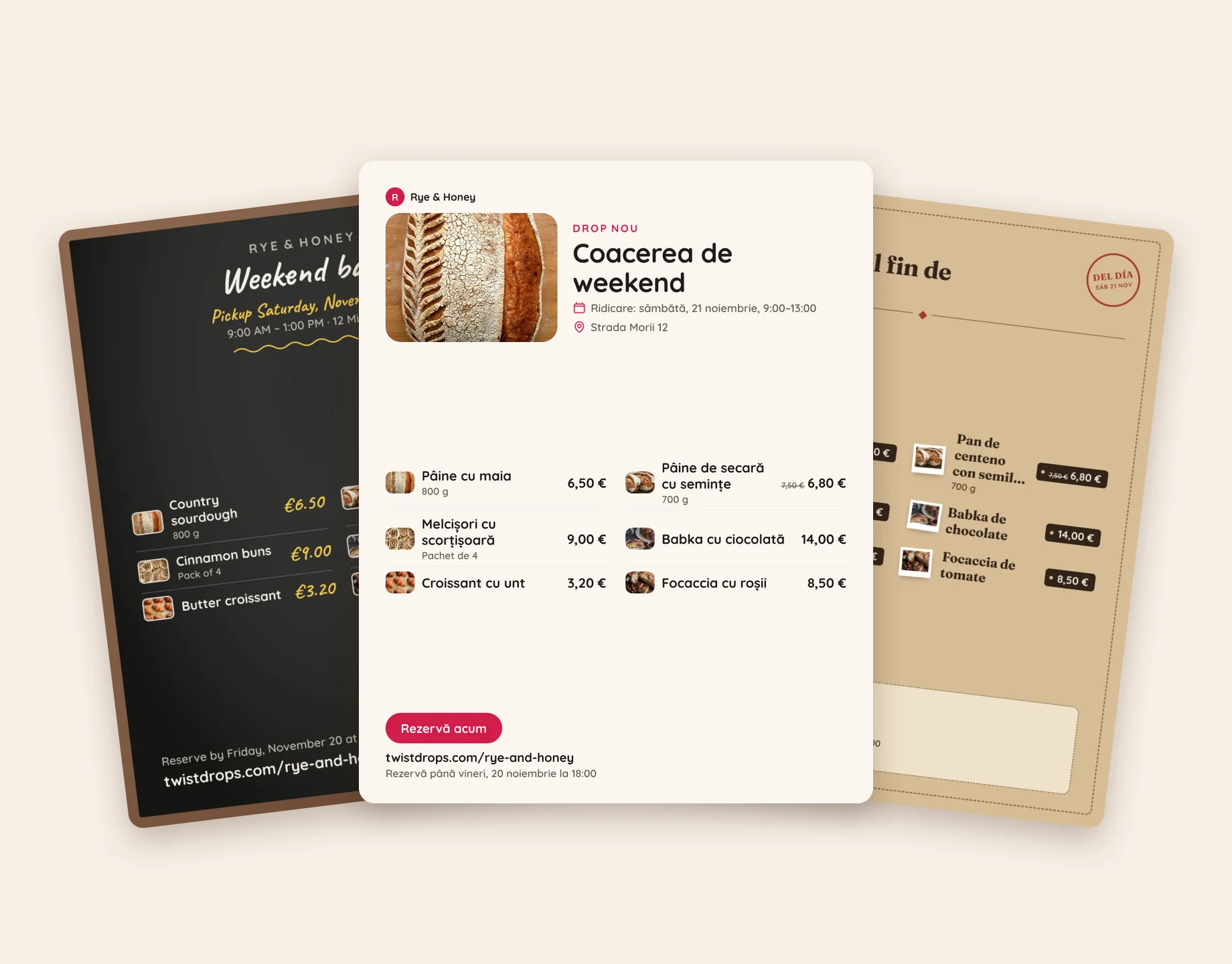
One picture of your drop
A drop menu is your drop as one picture, ready to post on Instagram or Facebook or to send on WhatsApp. Your products and their prices are on it in your drop’s order, with the pickup day and hours, where to collect, when reservations close and your storefront’s link. The studio draws it from your drop as it is now, so there’s nothing to type out, and nothing about your customers is on it.
Find it in the studio
Open “Marketing”: on a phone, it’s in “Menu” under “Promote your shop”, and on a laptop or tablet it’s in the sidebar under the same heading. On “Drop menu”, tap “Make a menu” and choose the drop; if only one is open or scheduled, the editor opens straight away. From a drop, “Make a menu” is in its ⋯ in “Drops” and at the top of its page, and the message you see after “Publish” offers it too. Menus are for drops that are open now or scheduled: a drop that has closed isn’t offered.
Choose a template
The editor has four steps: “Template”, “Format”, “Content” and “Share”. In “Template”, choose how your menu looks. Each template draws the same facts its own way: here is one drop as “Chalkboard”, “Photos” and “Market”.
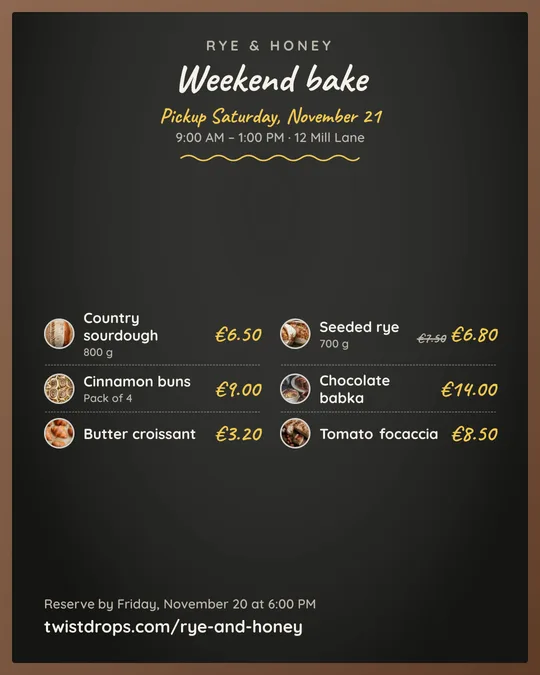
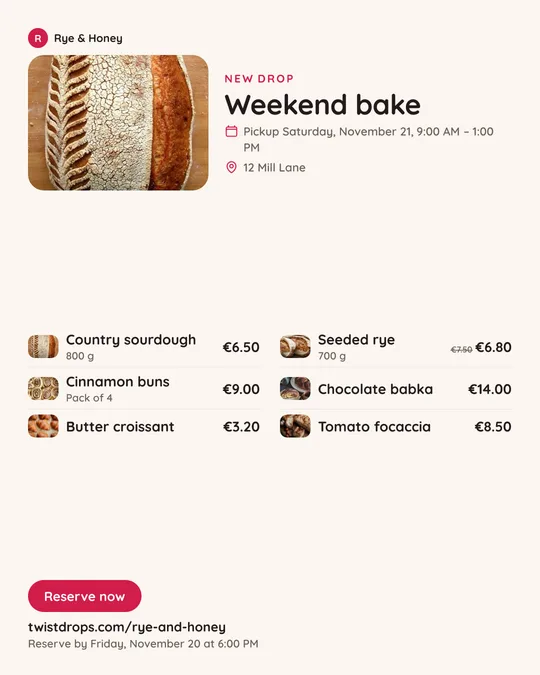
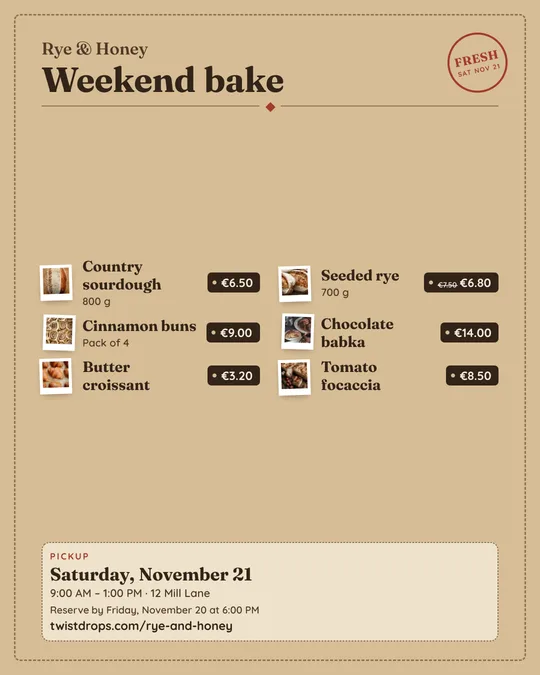
“Poster” and “Clean” make five. From 15 November to 6 January, “Christmas” and “New Year” join them under “Festive”, while today or your pickup day falls in those weeks, and a drop that uses one keeps it. Each template has three colour sets under “Colours”. “Letters” sets the type, “Sans” or “Serif”, though “Chalkboard”, “Poster”, “Market” and the two festive ones keep their own letters for the headline.
Post, story or square
In “Format”, choose the picture’s shape: “Post” (4:5) for a feed, “Story” (9:16) for stories and WhatsApp status, or “Square” (1:1). Here is the same menu in all three.
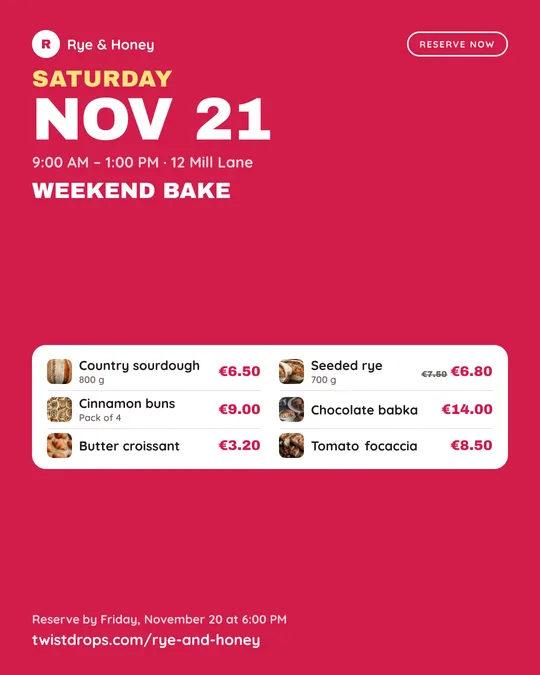
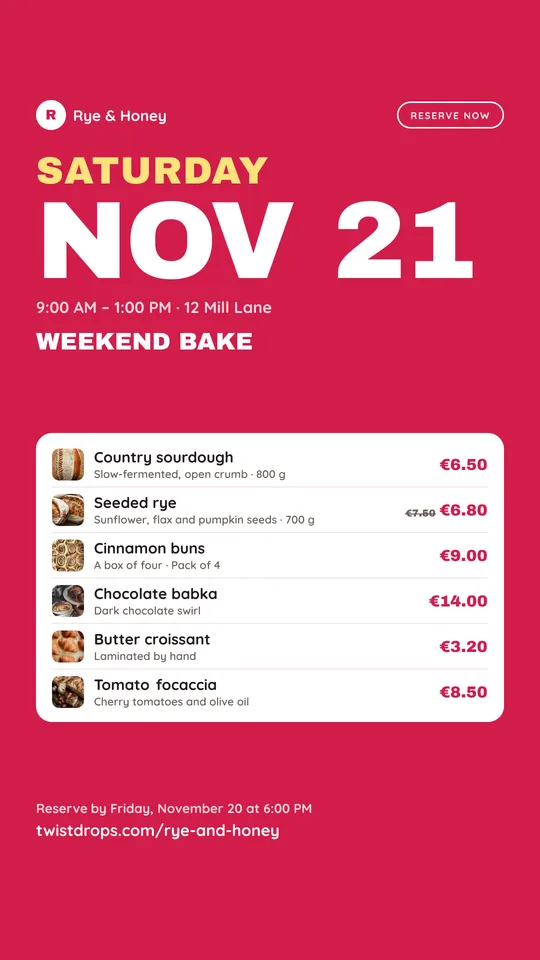
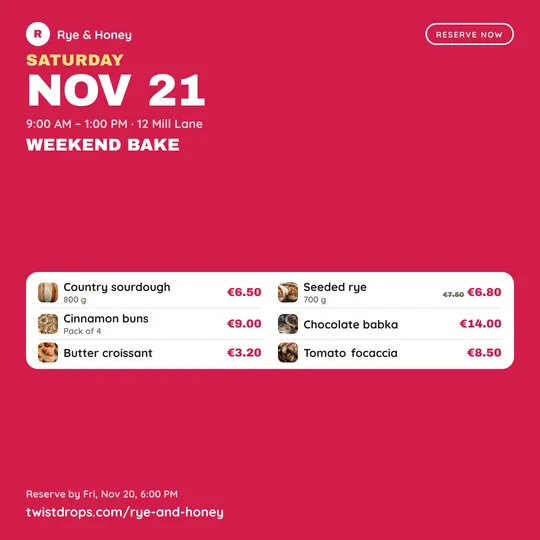
“Layout” sets how your products sit: “Auto” chooses for you, or pick “List”, “2 columns” or “3 columns”, which needs photos. The line under it says how many products fit. Any that don’t are marked “Doesn’t fit” in “Content”, and the line names a layout or a shape that holds them all: a story holds the most. What doesn’t fit still goes in the caption.
Your brand on every picture
Set your brand once, and your menus and carousels carry it: your logo, two colours of your own and a font for your headlines. Open “Your brand”, at the top of “Marketing”. Here is one drop in a shop’s own brand, as “Poster”, “Market” and “Photos”.
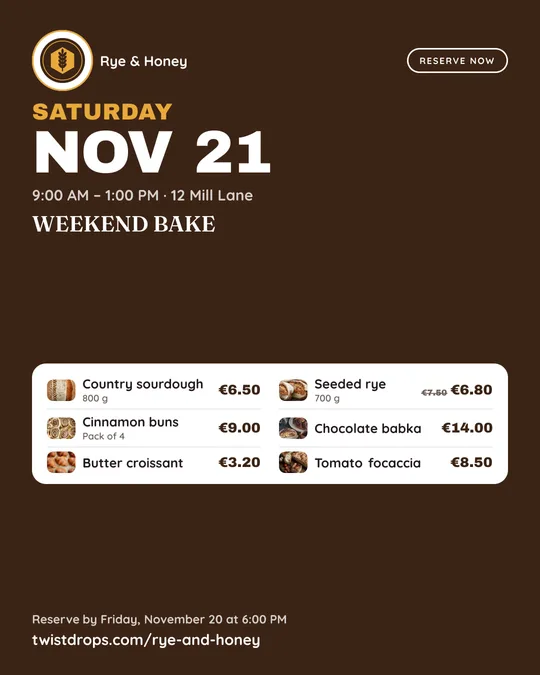
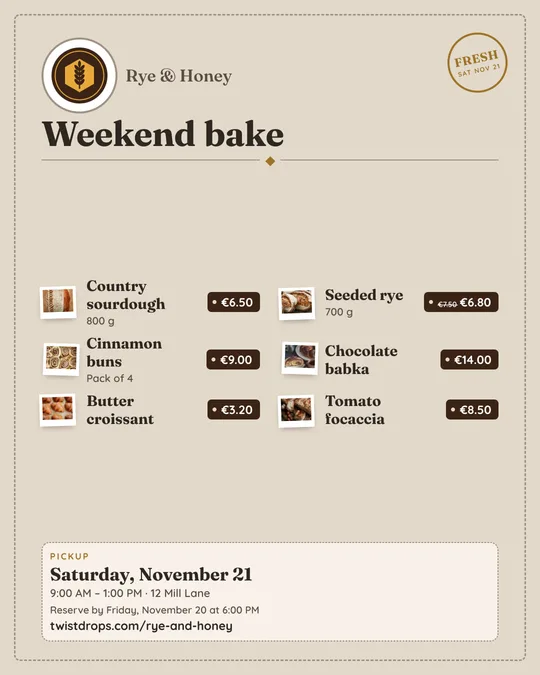
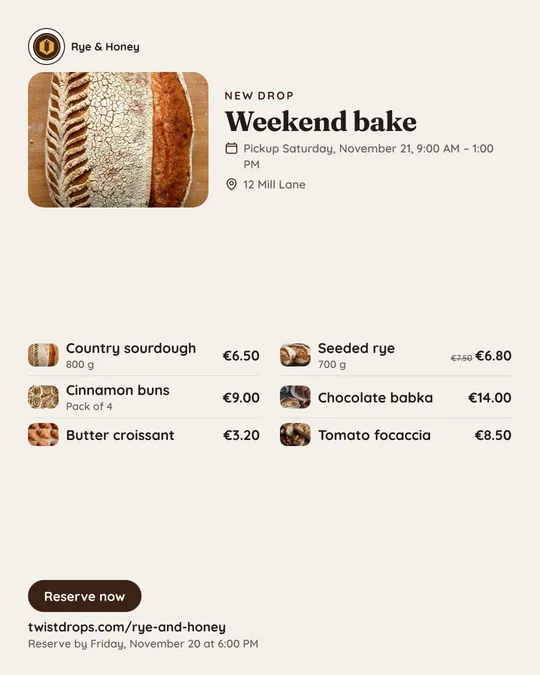
Your logo is the one in “Branding”, in “Settings”, and “Size in your pictures” makes it “Small”, “Medium” or “Large”. Pick a main colour and an accent from your logo’s own colours, from a pair to start from, or type your own, then one of seven fonts. The preview draws your next drop in them before you save. In the editor, “Your colours” comes first under “Colours” and “Your font” under “Letters”, and a new menu starts in them; each template works out its other colours from your two, so the words stay easy to read. Change your brand later, and every picture in it follows. “Christmas” and “New Year” keep their own look.
Language and headline
If your shop speaks two or more languages, “Content” starts with “Language”. The menu is in one of them: its words, product names and dates, and its caption too. Your link still opens your storefront in each reader’s own language. A product with no name in the chosen language yet keeps the one in your default language, and the line under “Language” says how many do. “Headline” is your drop’s name until you write your own, up to 60 characters. If it names a weekday that isn’t your pickup’s, a line under it says so.
What shows, and which products
Switch “Prices” and “Photos” on or off. If your shop has a logo, “Your logo” puts it at the top; switch it off for this menu alone. When your drop sells a product in several packs, such as a box of 4, 6 or 12, “Packs on one line” puts them on a single line. “QR code to reserve” adds your shop’s QR code, the same one as on your sticker, for a menu you print. Leave it off for a menu people see on their phone: nobody can scan their own screen, and your link is on every menu anyway. Under “Products”, untick any you’d rather leave off; one always stays. A sold-out product stays on and says so where its price was, until you untick it, and one on sale shows its old price crossed out.
Copy the caption, then share
“Share” shows the caption, in the menu’s language: what’s open, every product you kept with its price, those the picture leaves off too, then the pickup and your link with when reservations close. “Copy caption” copies it to paste under your post. “Download” saves the picture as a JPEG, 1080 pixels wide. On a phone, “Share” hands it to your phone’s share sheet, for Instagram, Facebook or WhatsApp, and copies your link first, ready for an Instagram story’s Link sticker. Tap the picture at any step to check it full size. After you download or share, the studio offers to make a carousel of the same drop.
It follows your drop
The picture itself isn’t kept: the studio draws it from your drop each time. Change a price, add a product or move the pickup, and the next picture you download or share has it. One you’ve already posted stays as it was, so post the new one. Your choices are saved for each drop as you make them, and its menu opens where you left it, on “Share”. A new drop starts from your last menu’s choices, with its own name as the headline and every product on.