Academy
Add a language
Set up your shop · 4 of 6
Hide playlist
Sign in
0:00
/ 1:22
1×
Prev
Next
Transcript
Tap a line to play from there
Click a line to play from there
0:00
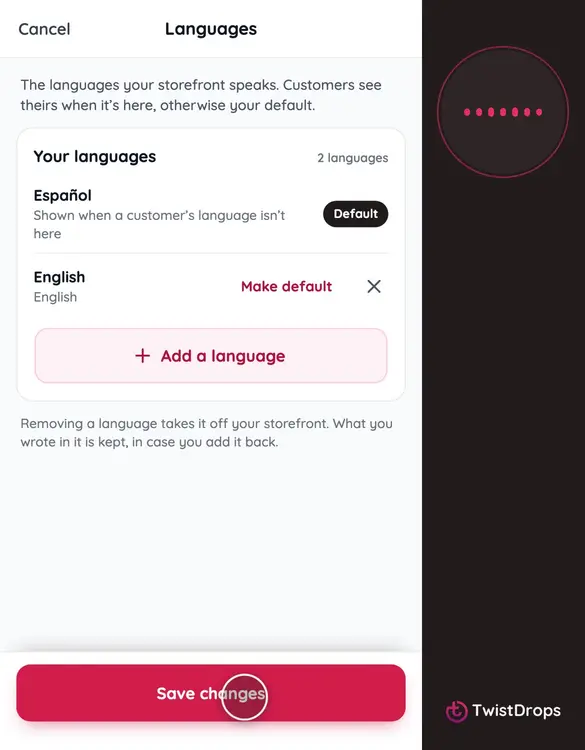
Tourists, expats and locals don't all read the same language, and your storefront can speak more than one. This shop is in Tenerife. Open Menu, then Settings, and tap Languages.
0:13
The shop speaks Spanish. It is the default: the language the shop was opened in.
0:20
Tap Add a language, and choose English. You can add as many as you like, and each one can be taken off again.
0:28
Now there are two. The default is what customers see when their own language is not here, and Make default changes it. Tap Save changes.
0:38
Next, tell your story in English too. Go back to Settings, and open About.
0:45
The About page holds your Spanish text. Under it, a button for English says it is not written yet, so customers see the Spanish. Tap it.
0:55
Write it in English. Anything you leave empty keeps showing in Spanish, so you can translate a little at a time.
1:10
Then tap Save changes. Both languages are saved together.
1:15
Your About page now speaks both languages. Next, the products and the drops.
Prev
Playlist
Next