Academy
Orders and their statuses
Orders · 1 of 6
Hide playlist
Sign in
0:00
/ 1:26
1×
Prev
Next
Transcript
Tap a line to play from there
Click a line to play from there
0:00
Here are your orders. The Orders tab opens on the next pickup: the drop at the top, and its orders below. A number on the tab tells you how many are waiting for you.
0:11
The chips filter by status: Pending, Confirmed, Completed and Cancelled. Pending means the customer is waiting for you to confirm.
0:21
Tap an order to open it. This one is Niamh's.
0:25
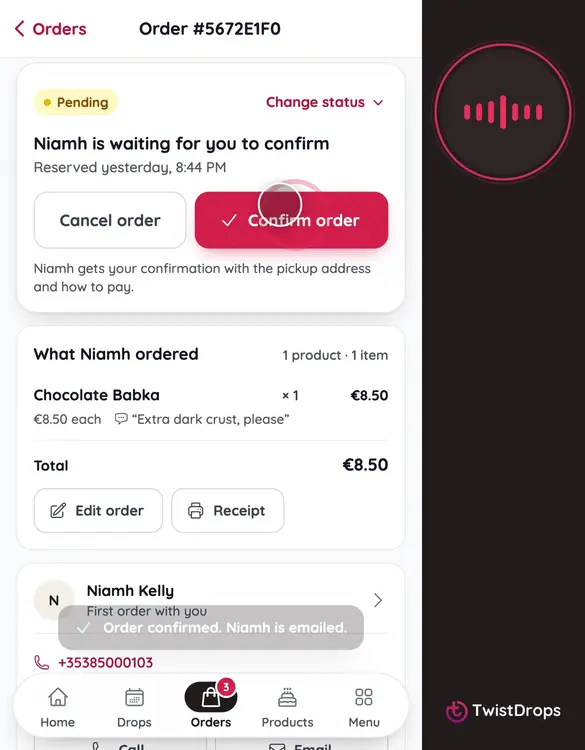
A new order is Pending. Tap Confirm order, and Niamh gets an email with your pickup address and how to pay.
0:33
On pickup day, when she collects it, tap Picked up. The order is complete.
0:39
You can add a note only you see, like 'pays cash'. Tap Add a note, write it, and save.
0:51
Back to your orders. Now Conor's.
0:56
If a customer can't come, tap Cancel order. You can add a message to the email, and the items go back on sale.
1:09
Changed your mind? Tap Re-open order, and choose where it goes back to.
1:16
Pending, confirmed, completed, cancelled: every order is always in one of them, and you decide when it moves.
Prev
Playlist
Next