Academy
Create and publish a drop
Drops · 1 of 6
Hide playlist
Sign in
0:00
/ 1:19
1×
Prev
Next
Transcript
Tap a line to play from there
Click a line to play from there
0:00
Let's plan a drop: the products you'll sell, and the day customers collect them. Tap the plus, then New drop.
0:07
Give the drop a name. Customers see it on your storefront.
0:13
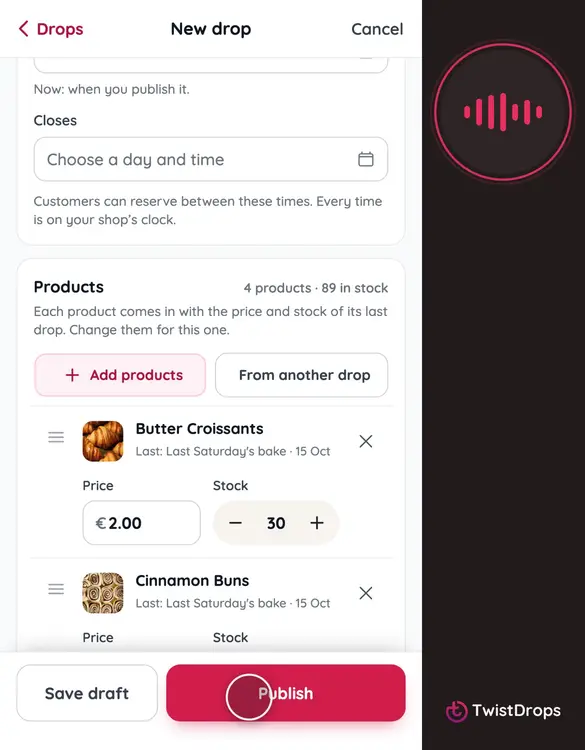
Now the products. Tap Add products, tick the ones for this drop, and tap Add.
0:25
Each product comes in with the price and stock from its last drop. Change them if this one is different: we'll make fewer croissants this time.
0:35
Next, the pickup: the day, and From, the time pickup starts. You can also set Until, when it ends. That one is optional, so customers know how long they have.
0:48
Then when reservations close. Leave Opens empty, and reservations open the moment you publish.
0:56
Tap Publish. Before it goes live, we show you what will happen.
1:01
It goes on your storefront now, open for reservations, and nobody is emailed. You can share the link yourself. Tap Publish to confirm.
1:11
It's published. Your storefront shows the drop, and customers can start to reserve.
Prev
Playlist
Next