Academy
Move, cancel and restore a drop
Drops · 6 of 6
Hide playlist
Sign in
0:00
/ 1:08
1×
Prev
Next
Transcript
Tap a line to play from there
Click a line to play from there
0:00
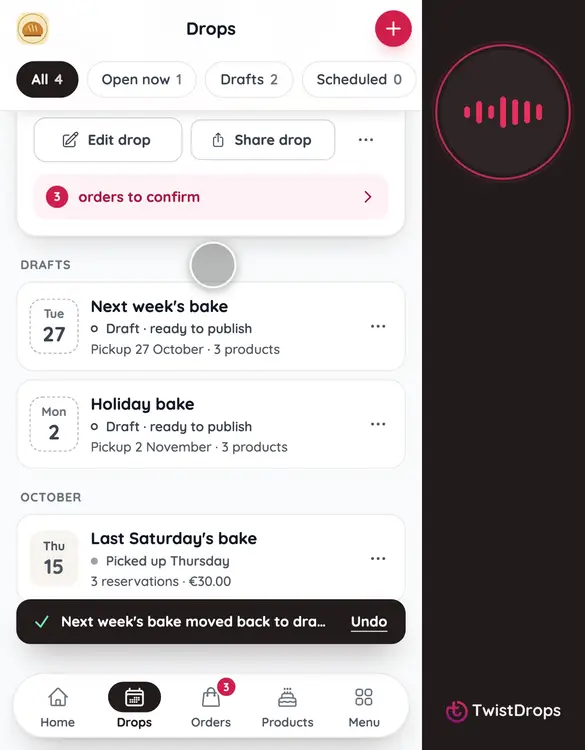
Plans change. Here is what you can do with a drop that is already published. First, a drop that hasn't opened yet. Tap its three dots.
0:09
Choose Move back to drafts. It leaves your storefront at once, and you can undo it. It only works while nobody has reserved from it.
0:19
It is now under Drafts, where you can change it and publish it again.
0:24
A drop that is open, with reservations, cannot go back to drafts. You can cancel it instead. Tap its three dots.
0:33
Choose Cancel drop, and confirm. It leaves your storefront. Its reservations stay in Orders, and nobody is emailed, so you can contact those customers yourself.
0:45
To find a cancelled drop, tap Filter and sort, and under Show, choose Cancelled.
0:53
Open the cancelled drop.
0:55
If you change your mind, tap Put it back on your storefront. It works while the pickup day is still ahead.
1:02
Now it's back, open for reservations, with everything as it was.
Prev
Playlist
Next