Academy
Save a drop as a draft
Drops · 2 of 6
Hide playlist
Sign in
0:00
/ 1:08
1×
Prev
Next
Transcript
Tap a line to play from there
Click a line to play from there
0:00
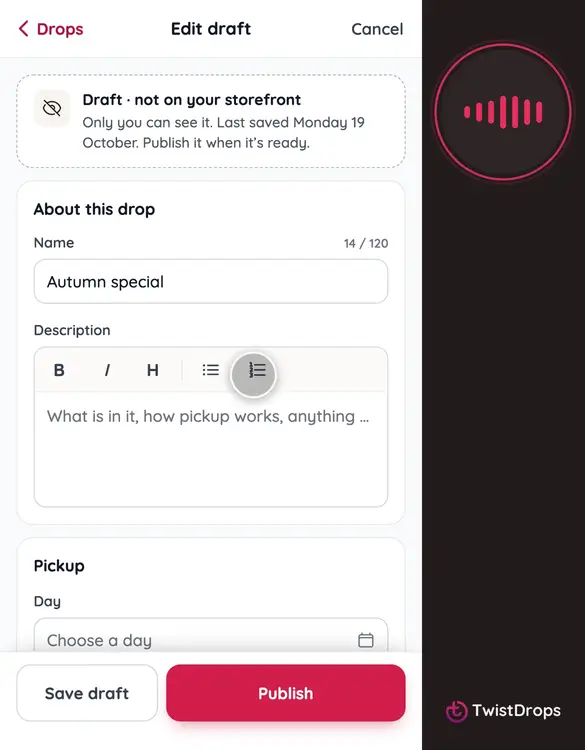
Not ready to publish? Save it as a draft. Tap the plus, then New drop, and give it a name.
0:09
A name is all a draft needs. Tap Save draft.
0:14
Your draft is saved. It isn't on your storefront: only you can see it, under Drafts.
0:21
Let's see what happens if we publish too soon. Tap Publish.
0:26
We tell you what is missing: the products, the pickup, and when reservations close.
0:32
Add the products, one by one, or as many as you like.
0:47
Choose the pickup day and time.
0:52
And when reservations close.
0:57
Now tap Publish, and confirm.
1:01
Drafts let you build a drop over a few days, and publish it when it is ready.
Prev
Playlist
Next