Academy
Add your first cuts and sausages
Products · 1 of 2
Hide playlist
Sign in
0:00
/ 2:41
1×
Prev
Next
Transcript
Tap a line to play from there
Click a line to play from there
0:02
Your shop is open. Now let's add what you make. A product is a template: its photos, what goes into it, and its allergens. Tap New product.
0:13
Start with a photo. Tap Add photos, then take one or pick one. The first photo is the cover.
0:22
Give it a name. We'll call this one Smoked Sausages.
0:26
Add a short line under the name, up to a hundred characters. Customers see it on the product.
0:33
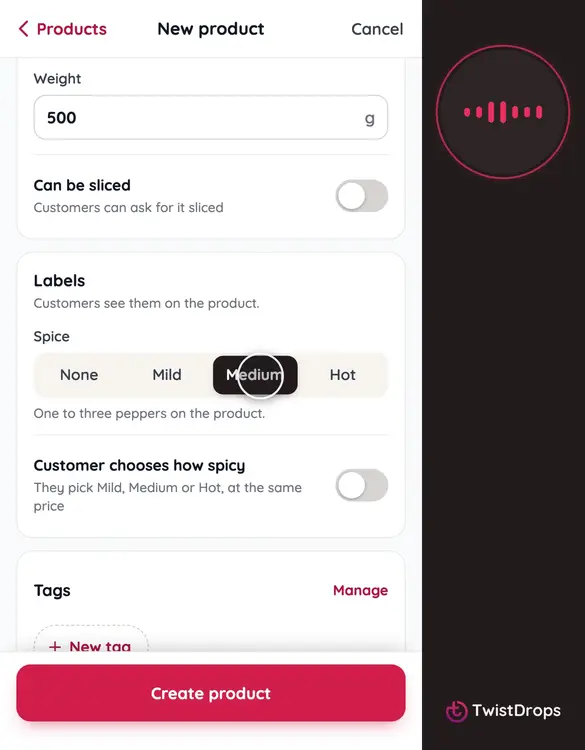
Under Details, say how it's sold: a single item or a pack, and how much it weighs. This one is 500 grams.
0:42
If customers can ask for it sliced, there is a switch for that too. We leave it off.
0:48
Labels show on the product: the spice level, or you can let customers choose how spicy they want it, at the same price.
0:57
Tags group your products. Tap New tag, type a name, and tap Create tag.
1:06
Now the allergens. This product has none to declare, so we leave it empty. If one had, you would tap Declare allergens, and choose it.
1:16
You won't find a price here. Price and stock belong to each drop, so you set them when you plan one.
1:23
Tap Create product.
1:25
Let's add two more, a little faster. Go back to your products, tap the plus, then New product.
1:33
The second is Pork Chops. A photo, a name, a short line, and its label.
1:48
A new tag. It has no allergens to declare.
2:02
And the third, Smoked Ribs. Its photo, its name, its line, and its details.
2:20
A tag, and nothing to declare.
2:28
Open the Products tab. Your three products are here, each with its photo.
2:34
That's your first products. Next, we'll put them in a drop, with a price and a stock.
Prev
Playlist
Next